


Ergonomic Tips and Tricks for Graphic Designers, Web Designers, Artists, and Office Workers
- Apr, 11 2010
- By Clay
- The Business of Design
- 30 comments
How I’ve Tricked Out My Work Station to Make Sure I Never Go on Disability Again
I know what it’s like to wear a wrist brace for three years, to be in so much pain that I had to ice my hand after brushing my teeth, and to have my partner pay all the bills because filling out a check was just too painful. This was my life after I walked off my job painting custom designs on ceramic sinks and tiles for eight years. I had tried to delay the inevitable with Cho-pats, wrist braces and ibuprofen. I switched to half days and tried modifying my work area to accommodate my ever decreasing abilities. Then one day my hand seized up, the brush dropped and I told my boss that I’d reached my end.
Looking back, I should had quit sooner. The last year caused so much damage that I have no doubt that it had a detrimental effect on my chances for recovery. So in 1998, after I had run through two years if disability payments and exhausted every physical therapy program available, my case was settled. The verdict – permanent disability. As part of the settlement I received $20,000 which was supposed to help me transition to some new mythical life.
Now I had always been working professionally in the arts since high school. While I was at my sink painting job I was also working my butt off in my freelance career. When not at my day job painting intricate works of art, I was designing a line of edgy t-shirts that were distributed nationally through Miller’s Outpost and Pacific Sunwear, I was staff cartoonist for three local papers and was self syndicating my alternative political comic strip, and even doing cartoons for Playboy Magazine. So when I went on disability it wasn’t just about my job and loss of income, it was my entire life.
This is when I got my fist computer. My dad bought it for me for Christmas after I told him that I think my future is digital and working at home under my own conditions. Turned out to be an excellent investment on both our parts.
So unlike most people, I was already disabled before I started working on a computer and at first I could only work on it a couple of hours a day, every other day. My condition was that serious and I was required to think ergonomically from the first day I powered up my workstation.
But here I am, twelve years later and working 12 to 14 hours per day with no issues. Time, acupuncture and some really smart ergonomic choices about how to modify my work station did the trick.
Now I’m passing on some of my favorite tips and tricks for working hard and efficiently on the computer AND keeping yourself off disability.
Get Rid of The Mouse and Buy A Pen Tablet
I don’t think anyone should be using a mouse. It was an ergonomic nightmare when it was invented and it still is today. Do this little test. Hold your arm out in the mouse position – forearm parallel to the floor, elbow cocked at a 45 degree angle, your palm facing down- and extend your index finger like you are using an invisible mouse. Hold it for 30 seconds and notice how awkward it is and how your arm doesn’t feel stable and strong. Now, without changing anything else, rotate you hand into a pencil holding position. If you are right-handed you’ll rotated your hand 45 degrees to the right. Feel the difference? Notice how your shoulder relaxes and how stable your arm feels now? That’s why you need to switch from a mouse to a pen tablet. Professional designers or serious hobbyists should spend the big bucks on the Wacom Intuos but regular folk will do just fine with the very affordable Wacom Bamboo.

My Wacom Intuos pen tablet shown here with added foam grip and added clear sheet protector to provide a smoother glide.
Get a Gaming Keyboard with Programmable Macros Hotkeys
Like a lot of people I copy and paste all day, and like many I use the Ctrl+C and Ctrl+V keyboard shortcuts. Now, I never learned to type so I use my two middle fingers and look at the keys. I’ve tried to learn to type the real way, but it hurts my tendons to use all those fingers rather than just powering through using my two longest fingers. This means I also use two hands to do my keyboard shortcuts. I tried doing the finger spread with my left hand but it irritated my tendons very quickly. If you cut and paste perhaps several hundred times per day, using two hands or even two fingers on one hand, it’s going to take its toll.
Now what if I told you could have a keyboard that could do anything – be it a keyboard shortcut, inserting a line of text or even launching an application – with just one keystroke. Well if you get a gaming keyboard with programmable hotkeys you can do just that. I’m using the Logitech G110 and it’s changed my life. I can have instant access to 12 shortcuts of my design and another 24 on reserve. But I really want just copy and paste shortcuts so I programmed all the left hotkeys for copy and all the right hotkeys for paste. Now it’s nearly impossible to miss!

My Logitech G110 Gaming keyboard with programmable hotkeys. Now I just hit G6 for copy and G12 for paste.
Wrap Your Pens and Pencils with Foam for a Wider Grip
Pens, pencils and brushes are just too slim for sustained use. The thinner the instrument the tighter your tendons must contract. Additionally, the last 50% of your finger’s contraction takes more energy than the first 50% of the contraction. Try it yourself by picking up raisin or other small object. Notice how easy it is to start the contraction but the last 50% of the movement requires more concentration, more strength, and more tension. Wide grips on your instruments negates the need for a full contraction. It also creates a grip with some give so it’s softer and more comfortable to use. The bounce back from the foam also provides a subconscious reminder to relax your grip even when you are stressed and rushing through to deadline. The same effect is experienced by teeth grinders who use a pliable mouth guard to stop their jaw from clamping down. I use 1/8 inch black foam rubber that I get at Orchard Supply and some high quality duct tape. Electrical tape also works.
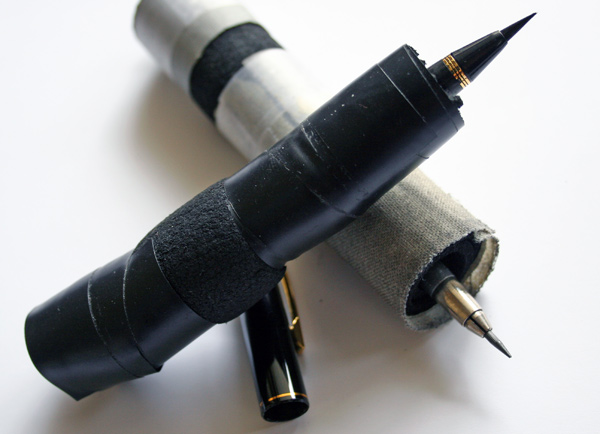
I wrap all my pencils, pens and brushes in 1/8 inch foam rubber for a nice ergonomic wide grip.
Divide Up Your Chores to Spread the Wear and Tear on Your Body
I have a pen tablet but I also use a mouse. This was at first a necessity because I covered up the right-click button on my pen with a layer of foam rubber to create a wider more economical grip. So I placed my mouse on the left side of the keyboard to handle right clicks and scrolling. Turns out it was a blessing in disguise because now I’m spreading the wear and tear on my body over both hands and not putting all the responsibilities on my right.

I use both a mouse and a pen tablet to spread my duties across both hands. The mouse handles right clicking and scrolling.
Set Your Computer for Single Click Action
By default you probably double-click to launch a program or view a hyperlink but what if you could do that with one click? By setting your mouse and pen clicks to single action you instantly reduce your daily clicks by 50%.

How to set your mouse for single clicks in Windows Vista.
Buy some Wide Grip, Light Weight Writing Pens
I’ll make this one super easy. Just go to Staples and by their store brand Classic Grip gel ballpoint pens and a couple of packs of Classic Grip refills. I’ve used a lot of pens and these are the most economically friendly I’ve ever found. They also have a supremely smooth tip feel that just glides across the page. I’d give you a link but apparently Staples’ doesn’t have enough sense put this pen on their website so you’ll have to buy it in store.

Staples ergonomically friendly Classic Grip pens. I always keep a pile around my workstation and one in my car.
Now a Word About Laptops
For the last two years laptops have outsold desktops. This is great for manufactures but bad for our bodies. Everything about a laptop is ergonomically wrong. The keyboard and the screen are connected causing you to hold your arms too high while simultaneous tilting your head to low. When you work on laptop you round your shoulders and bring your forearms up. Not a pretty sight.

Snidely Whiplash working on his laptop. Notice the hunched shoulders and how high his forearms must be to reach the keyboard.
To make matters worse more people are ditching the mouse in favor of the little touch pad, so now their posture is even more cramped. If you absolutely must use a laptop then buy a keyboard, pen tablet, monitor, and decent computer desk. Just leave the keyboard, mouse, pen tablet, and monitor set up on the desk 24/7. The pen tablet you can take with you when you travel if you choose. When you’re at home and it’s time to work on the laptop, just hook it up and use it the way you would a desktop computer. Your body will thank you.
Ergonomics…By Any Means Necessary
Ergonomics is not about looks or style – it’s about function. Don’t be shy about doing what you need to do to make it work for you. Who cares if you bought a giant mouse so you could use it with your toes or that you bought a children’s keyboard because you like the jumbo sized keys? If it works, it works. Below is my computer workstation (my giant oak drafting board is off the frame to the left) and it’s not a pretty site.

My workstation ain’t gonna win any beauty contests.
This is the “by any means” mantra in action. My Wacom tablet was just a little too low and the angle a little too flat so I propped up the back with my first computer magazine “The Winter 1998 Computing Dictionary”. It’s the same one I’ve been using with all my Wacom tablets for the last twelve years. My new Logitech Gaming keyboard was too slim and the angle too low so I set it on top of my “9th Edition Graphic Designers Guild Handbook – Pricing and Ethical Guidelines” and then put one of my package designs for Do-Goodie brownies on the back to create the proper angle. I knew the Graphic Designers Guild Handbook would be useful someday and I’m glad I didn’t eat all the brownie samples!
File Under: Ergonomic Tips for the Workplace – Computer Ergonomics – How to Upgrade Your Workstation for Better Ergonomics – Workplace Ergonomic Tips – Setting Up an Ergonomic Home Office


Douglas Kleinhans
Microsoft used to make a keyboard called the Office Keyboard. On the left side of the keyboard was a scroll control and single button cut, copy and paste controls. Unfortunately they discontinued it. I bought 9 of them to make sure that I would have a lifetime supply.
I also flipped my mouse buttons. Much more comfortable and lest stress to the muscles in your forearm. My arm lies flat on the table on an extra large mouse pad. I never use the touchpad on my notebook and only use the keyboard when I absolutely have to.
Clay (The BDD Dude)
Wow. Smart move Douglas. It’s a shame they discontinued that one. I’m just amazed at how short sighted all the keyboard companies are. Imagine if Microsoft made that standard on all their keyboards and linked it with their Windows 7 campaign. Sometimes you shouldn’t wait for people to ask for something when it’s in their best interest. Just implement it and then explain why it’s better. No one knew they wanted premium ice cream until Ben and Jerry’s and Haagen Dazs came out. No one knew they wanted premium coffee until Starbucks showed them what was possible. Same with airbags. Before they were invented and marketed, how many people went around complaining that their car didn’t have some kind of instantly inflatable device to stop their forward momentum in a crash? Probably very few if any.
Christopher
I’ve been looking all over the net and most of the ergonomic tips I find are for people who aren’t designers
I’ve been an art director for theatrical and television for 7 years. This January I got hit with a huge project, worked 38 hours in 3 days with 10 min breaks for lunch and dinner. No surprise my wrists gave out and I have developed carpal tunnel at 30. Getting workers comp and such was a nightmare to prove. After 4 months it went through. So I totally get what your saying about the wrist brace and pain. It’s been 6 months for me and I feel like I am still at square one.
Clay (The BDD Dude)
I recommend acupuncture. I went through all the western therapy including ultrasound and cortisone shots straight into my palm. Nothing really “cured” it. The cortisone masked the pain and helped with inflammation but the underlying problem was still there. I could tell I was still completely destabilized. So out of desperation I tried acupuncture. I was symptom free for four days straight after my first treatment. My hand felt normal for the first time in two years. It really opened my eyes to the possibility of a life without tendinitis. Without acupuncture I’m convinced I would never had made a full recovery. If one acupuncturist doesn’t seem to help then try another one. It’s just like doctors and lawyers and mechanics. Some are brilliant and some just barely know what they are doing. If you find a brilliant one it will change your life.
Quentin
Good call, It’s difficult when you sit at a computer all day to make a living. I am a Graphic Designer and about a year ago my right hand started killing me by mid day of working. I almost couldn’t bear it. I started taking a lot of Alieve and realized I was doing things very wrong ergonomically. I bought a pen tablet and immediately found some relief and just a few months ago I started wearing a futuro hand brace for carpel tunnel syndrome and I won’t work without it now. I wondered if you know of any other braces that designers wear that may be less restrictive though?
Leah Rae
Thank you so much for the tip about using a pen tablet. My left elbow is totally messed up from having to use a laptop so often while out of my office. I’m sure I look a little odd because I try to keep my left arm as straight as possible when I’m not working :) My regular workstation is way more ergonomic. I’m definitely getting a pen tablet to save my right arm.
I also recommend anyone who spends any amount of time working on a computer invest in a decent chair. Made a real difference in my workday.
Leah
I thought I’d do a follow up for anyone reading this.
I figured out it’s called “tennis elbow”. The irony is that I’m a runner, I have zero hand eye coordination. Put me on a tennis court & guess who’s gonna get bopped in the head by a tennis ball :) For safety I stay far, far away from any activity’s that might involve projectiles shooting at my head. Lesson learned from high school Volley Ball.
I found a gel band arm band (google it – I don’t want to post a link here out of respect). Jury’s still out on if it’s gonna help or not. What gave me immediate relief is the wrist strengthening exercises in the info packet. Google wrist flexor stretch & wrist extensor stretch. Surprisingly, they both made my elbow stop aching.
Hope I helped someone w/this info. :)
Clay (The BDD Dude)
Those can work well. From what you describe you are using a Cho-Pat type device. It’s an adjustable band, usually padded or with a gel pack in the middle. It presses on the tendon and protects it from stress. I had one for my elbow and my shoulder. Runners put them on their knee and even swimmers use them.
Think of a rubber band. Cut it in half and lay it on the table holding one end. Now have someone stretch it out. Have them release and this time hold down the middle with your other finger and have them stretch it again. The rest of the band now must sustain the full stretch while everything behind the finger is slack. Your finger is how a Cho-Pat works. It’s a temporary fix so you’ll need to follow up with other changes/treatments if you want to build upon the relief you get.
Leah
Duh!!!! I’ve used a cho-pat for running since they came out in the 90’s. Never saw the connection. Thanks for the info! I’ve been having trouble figuring out how to position it in the right spot on my arm. The brochure just said to place it on the arm… not super helpful. :)
I agree that it’s a temp fix. I think what I need to do is keep up with the stretches and keep my elbow from being too flexed.
BTW – I passed on your carpel tunnel work station suggestions to my step-father & they have been helping him.
Martrese
Leah, you and I are in the same boat; I’m a marathon runner who just got tennis elbow (and a graphic designer for 15 years who uses my laptop’s trackpad when not working in the office – booo). And like Milo, lots of Photoshop work.
Thanks BDD Dude for posting these tips and starting this conversation. I plan on implementing many of them. My husband (a Mac IT genius) uses a standing desk, and we have adjustable standing desks at work – yay! I’ve never tried acupuncture, but I will now.
I’ll report back . . .
Ref
“My Wacom Intuos pen tablet shown here with added foam grip and added clear sheet protector to provide a smoother glide.” – Dude, are you crazy? What the heck is this? How on earth can you feel how your pen works, how can your hand and your pen become one while creating something? And providing smoother glide seems funny to me. Isn’t it so that you put this clear sheet on the tablet surface because you don’t want to scratch it? If you want “smoother glide” then you should buy Intuos3. This paper-like surface in Intuos4 was added in order to make drawing more comfortable (and it helps to me!). If you are afraid of scratches then you should know that the surface can be changed, you can buy these layers in Wacom store. If you don’t want to spend money on your tablet then you should buy non-changeable surface tablet.
Clay (The BDD Dude)
I don’t think you understood the logic of my work station set up.
I put the smooth surface because I don’t like the resistance from the new “paper” surface – not to protect the surface. The new paper surface to me is just a gimmick that makes working harder.
I didn’t want the Intuos 3 – I wanted the 4. It made no sense to go backwards to an old model when they had a new one out.
Having the foam makes no difference to being able to “feel” the pen. My real ink pens and pencils all have foam grips and it makes no difference either. Do you actually grip the steering shaft on a car to drive it or do you use a steering wheel for better leverage? Do you hold the ink chamber on a ballpoint or do you hold a pen that holds the ink chamber. Do you paint with a brush or do you put your fingers directly into the paint? Every tool and interface is a simulation. We rarely directly effect anything without a user interface or tool of some sort. The only difference is mine is bigger, and therefor better for your tendons. If you had a debilitating injury you’d understand.
Nichole
Thanks for this post. Your details about each item are very helpful. After 11 years I’m having so many problems with my neck and back as an interactive designer. Like you, this is my life so changing to some “mythical career” hasn’t been realistic. I’m going to go back to the tablet and try padding it like you did.
I’m also in agreement about acupuncture. It saved my life. I even had an MRI to check my spine, along with other therapies to make sure it wasn’t something else, but low and behold I only hurt when I’m seated. However, getting acupuncture to cure what you’re doing to yourself so you can go back and do it again, then go back to acupuncture seems like a silly cycle. But then again, if this is our lives, I guess we have to find a way to make it work, and it’s far better than drugs.
This chair is pricey, but after musical chairs for 11 years, this one ROCKS. Well worth the investment.
http://www.ergodepot.com/HAG_Capisco_p/8106.htm
Nichole
Darian
Question: I’m considering going into the field of graphic design but I have back pain and neck from a motorcycle accident. I like the area of graphic design and think i’d enjoy it but i wonder if the nature of the work would make it impossible for me to sustain. Do you guys find that sitting as you do for so long gives you neck/back pain? Also, assuming that you have all the ergonimic comforts/tools on the market, would the work still cause you some wrist/hand pain? I ask because i also fractured my right/dominant wrist and a few bones in my hand in that same accident.
Thank you in advance for any imput.
Clay (The BDD Dude)
Sometimes my neck and right shoulder gets all tight and achy after too many long days, especially if it’s high intensity (lots of deadlines). My back is almost always fine because I practice good posture and have good lumbar support on my chair.
That’s a combination of both the physical work and the physiological/psychological factors. When you’re stressed you tense up, type harder, hunch more, clench your teeth…everything suffers.
All I can say is start of with the most ergonomical set up you can get and ease into it and see what happens. Then treat your body well and follow a low inflammation diet (omega 3’s, lot of fresh vegetables, whole natural foods, no sugar) maybe find a good acupuncturist (nothing better at dealing with inflammation and chronic pain in my personal experience), ice and massage your wrist and shoulder when they act up (massage first, then ice – massage inflames the area), and get plenty of sleep.
Darian
Thank you. How hard or easy is it to secure work as a graphic designer (with no prior experience) on a part-time basis. How common is it for graphic designers to work part-time?
Clay (The BDD Dude)
Getting hired? Probably not good. I don’t know what conditions would need to happen for someone to hire a designer with no prior experience. It almost doesn’t make sense either. If you have no prior experience, you aren’t really a designer. You become a designer by doing it (schooling – self taught or college, freelance, personal projects, volunteer, anything as long as your constantly designing and learning.)
I’m also not the best person to answer that. I’ve always worked for myself except for painting custom designs on ceramic sinks and tiles for eight years. I also started working professionally while I was still in high school (small stuff for local businesses).
So I don’t remember a time when I wasn’t hustling work. I also don’t remember not being a designer. I think I designed my first t-shirt in third or fourth grade for my “gang”. Just a group of neighborhood kinds actually. I came up with a logo and hand drew everyone’s shirt with marker. We were the “King Cobras”. So I was thinking about branding and identity from the time I was very young – except I didn’t know what those things were as it was all instinctual at that point.
Darian
Thanks again.
Lordmythic
Great post. I kept wondering what was keeping me from fully enjoying my wacom setup and voila! In lieu of foam, I added some doublesided tape to my pen and my hand felt so much better. I’ve also got my tablet propped up at an angle with some hobby magazines. Great great thoughts were put into this, kudos to you!
herm
This is the exact post i was looking for to address ergonomics as a graphic designer. What i’m trying to figure out though, is how you modified the wacom pen with the foam, but still have access to the pen’s two side buttons? I use those a lot for panning or rotating with cameras in 3D programs.
Thanks for the great tips so far, i think i’ll invest on a gaming keyboard.
Also, what are your thoughts on a mouse like this?: http://www.thehumansolution.com/evoluent-vertical-mouse-vm2-rsb-left-hand.html?utm_source=Google%2BShopping&utm_medium=cpc&utm_medium=cpc&utm_campaign=Google%2BShopping&gdftrk=gdfV2929_a_7c132_a_7c5187_a_7cPRS107&gclid=CNfe-Ojf368CFWcHRQodeEchDA
Clay Butler
I didn’t keep my button access. I sacrificed them for comfort. I use my mouse for all clicking. I don’t think there is a way to keep both unless you designed a special extended grip that had build in button extenders. No sure what to think about that mouse you linked to. All that really matters is what makes your life easier though.
Eric
For what it’s worth, my uncle knows the guy who developed that vertical mouse in the link above. He’s been using them for years and swears by the thing. I myself have only tried it a few times when visiting, but the concept behind it seems sound (keeping your arm in a more natural position).
I might have to revisit my neglected Wacom tablet after this post. Thanks.
GPaik
Had a mouse like this, ant find it now, this is a great great. MOuse!!!,
Milo
I work in magazine production and I have done the heaviest of days just cutting out silos in Photoshop with paths or working on large numbers of InDesign files.
Contrary to what’s commonly believed, my seating posture is different and I learned this the hard way; but it works for me. Instead of being at the ramrod angles like they suggest, sit on a chair, then slide forward so it looks like you’re slouching like a bad boy teenager at high school.
Your back should be at a roughly 45 degrees angle from the back of the chair. I can easily hold this position for hours without any stress at all.
For Photoshop — use a Wacom with the fat wide grip that comes supplied with Intuos 4 (you can buy this grip as a spare accessory and use it on a Intuos 3 pen too!), or foam it up like you have. Have all your favourite menu items set to function keys. Program the Intuos 4’s on screen Radial menu (increase the number of commands available by using sub folders) and use the side buttons.
For layout or 3D work — I find using a Wacom slows me down for these jobs, so I use a programmed Logitech multi-button mouse. Consider a Nostromo n52 gamepad or contourdesign ShuttleProV2 for the secondary hand.
Refusing Bad Business: A Luxury You Can't NOT Afford
[…] I’ll share an example from my own life that some of you have probably dealt with as well: design-related injuries. I had the world’s crappiest chair, which wrought major havoc on my back and shoulders until I […]
Mike
Thanks for the post! I found your insights wonderful. I have a suggestion for you, rather than wrapping your wacom pen with foam have you considered using an aftermarket grip designed for the wacom pen? The one I use is the Plus Ergo Grip and I love it. I used to wrap my wacom pen with foam but that was just a very messy solution (ie. the foam would alway slip off and I couldn’t have access to my buttons). An aftermarket grip is a much more elegant solution cause it gives you a very wide grip but also allow you to have access to the buttons (plus it doesn’t look ghetto!). Check it out,
http://www.plusergogrips.com
Clay Butler
I checked out the link. I think foam might be best for me. I don’t want to use the buttons. That’s actually part of it. Using buttons would hurt my fingers. So an asymetrical design to leave buttons exposed make for a strange looking grip. Maybe I’ll try it though. I can always return it.
Latifah
Thank you!!! I knew I wasn’t the only designer who struggled with this… Design being the one thing I’m really good at and yet I feel like I’m hurting myself by working. :( No bueno. I can’t wait to implement much of what I’ve heard here, as well as try out a few ergo keyboards. Also, I came across this article on placement of the tablet which might be helpful for the other designers out there: http://www.davidrevoy.com/article30/ergonomic-of-graphics-tablets
I’ve been thinking about acupuncture and am glad to hear you’ve gotten such great results.
It’s uncomfortable even typing this so I’ll stop, but again thank you!! and I appreciate you sharing your story & recovery. ;)
Latifah
JJ
The Ring Pen Ultra (http://www.ringotools.com) helped me reduce pain in the hand when drawing and it also fits the Wacom pen if you remove the rubberised grip part. It’s also possible to use it with the pen buttons. They fit the small, medium and large ring pen grips. I’ve used it with the Cintiq displays and Intuos tablets for 3D, 2D and sculpting in Zbrush. Hope it helps someone! :O)
Jonathan
Hey i know i’m a little tardy to the party here but i really appreciate the write up here i am an aspiring comic artist and i recently fell and have a hairline fracture in my hand making it hard for me to draw or even write. With help from your article and after talking to a chiropractor i can easily draw now with little to no pain!!! THANK YOU!!!